
Topic 1.4.1. Collaborative Tools (Google Workplace)
COLLABORATIVE TOOLS
Discussion:
- How do you typically share and edit documents with your team?
- What are some challenges you face when collaborating online?
- Have you used Google Workspace before? If so, which tools are you familiar with?
- What do you think are the most important features in a collaborative tool?
- How do you prioritize security when sharing documents online? What precautions do you take?
Activity 1
What is Google Workspace?
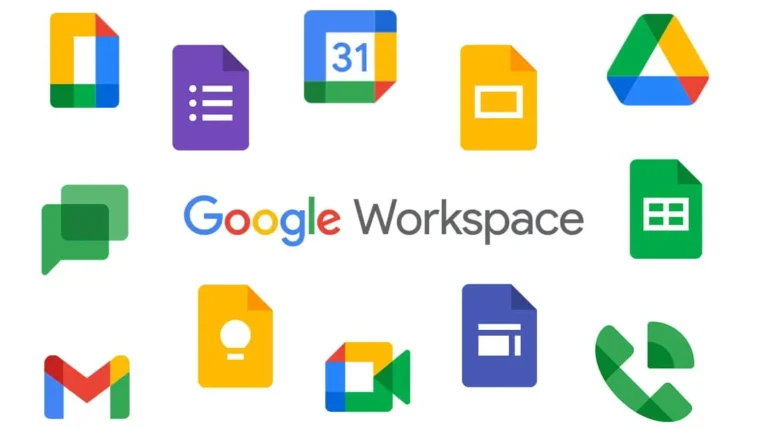
Google Workspace, formerly known as G Suite, is a collection of cloud-based productivity and collaboration tools developed by Google. These tools are designed to help individuals and teams work more efficiently and effectively by providing seamless integration and accessibility from any device with an internet connection. Google Workspace includes applications for email, document creation, storage, communication, and project management, all hosted on Google’s secure servers.
Key Tools in Google Workspace:
Gmail:
Description: A powerful email service with features like spam filtering, labels, and powerful search capabilities.
Use: Manage professional and personal email communication.
Google Drive:
Description: A cloud storage service that allows users to store, access, and share files and folders securely online.
Use: Store documents, spreadsheets, presentations, and other files, and access them from any device.
Google Docs:
Description: An online word processor that allows for real-time collaboration and editing.
Use: Create, edit, and share text documents collaboratively.
Google Sheets:
Description: An online spreadsheet application that supports real-time data entry and analysis.
Use: Create, edit, and share spreadsheets for data analysis and project tracking.
Google Slides:
Description: An online presentation tool that enables users to create and collaborate on slideshows.
Use: Develop and share presentations with team members.
Google Meet:
Description: A video conferencing tool that supports secure and reliable virtual meetings.
Use: Host video meetings, webinars, and virtual conferences with team members or clients.
Google Calendar:
Description: An online calendar application for scheduling meetings, events, and reminders.
Use: Organize schedules, plan events, and share calendars with others for better coordination.
Google Forms:
Description: An online tool for creating surveys, quizzes, and forms to collect information.
Use: Gather feedback, conduct surveys, and collect data from respondents.
Google Keep:
Description: A note-taking service for creating, editing, and sharing notes and lists.
Use: Jot down quick notes, create to-do lists, and set reminders.
Google Sites:
Description: A web page creation tool for building intranet sites and project websites.
Use: Develop and share internal company websites and project-related site.
Discussion
- Which of these Google tools do you use in your daily work?
- Which ones do you feel more comfortable using?
- Which ones have you never used?
Benefits of Google Workspace:
- Collaboration: Real-time editing and commenting on documents, spreadsheets, and presentations enhance teamwork.
- Accessibility: Files and applications are accessible from any device with an internet connection, ensuring flexibility.
- Integration: Seamless integration between tools helps streamline workflows and increases productivity.
- Security: Advanced security features protect data and ensure compliance with industry standards.
- Efficiency: Automated tools and features reduce repetitive tasks and save time.
Discussion questions
How does working on the same document or file at the same time help a team work better?
How does being able to use files on any device change how people work? What are the good and bad things about this?
How does linking tools in Google Workspace make work easier? Can you give an example?
Why is it important to keep data safe in Google Workspace? What security features help protect company information?
How can automatic tools in Google Workspace help with repetitive tasks? Can you think of a time this would have helped you?
Vocabulary and Expressions for Collaborative Tools (Google Workspace)
Activity 2
Expressions and Phrases
- “Let’s collaborate on this project.”
- Encourages teamwork and joint effort.
- “I’ve shared the document with you.”
- Informs someone that they have access to a specific file.
- “Can you update the file in real-time?”
- Request to make changes to a document while others are also working on it.
- “Check the version history for previous changes.”
- Suggests looking at the document’s past versions to see what has been modified.
- “Please set the permissions to ‘view only’.”
- Request to restrict document access to viewing without editing rights.
- “Add your comments to the document.”
- Instructs someone to leave feedback or notes on the file.
- “We need to integrate this tool with Google Workspace.”
- Proposes combining another tool or app with Google Workspace for better efficiency.
- “Ensure everyone has the correct access rights.”
- Reminder to set appropriate permissions for document access.
- “Assign this task to John.”
- Directing the assignment of a specific task to a team member.
- “Set up notifications for any updates.”
- Suggests enabling alerts for changes to stay informed.
- “Use the collaboration platform to manage your projects.”
- Advising the use of a digital workspace for project management.
- “Let’s schedule a meeting using Google Calendar.”
- Planning a meeting through the calendar tool.
- “Please review the document and make any necessary changes.”
- Asking someone to check a document and update it as needed.
- “Check the shared drive for the latest version of the file.”
- Instructing to look in the shared cloud storage for the most recent document version.
- “We need better version control for this document.”
- Highlighting the need to track changes and versions more effectively.
Activity 3
Role plays
Setting Up a Team Project in Google Drive
– Roles: Team Leader and Team Member
– Scenario: The team leader explains how to organize and share folders on Google Drive for an upcoming project. The team member asks questions about how to upload files, share links, and manage access rights.
– Focus: File sharing, organizing documents, and assigning access rights.
Hosting a Virtual Meeting on Google Meet
– Roles: Meeting Host and Participant
– Scenario: The host is organizing a virtual meeting and needs to explain to a participant how to join the meeting, share their screen, and use other features like muting and the chat function.
– Focus: Virtual communication, video conferencing tools, and meeting etiquette.
Collaborating on a Google Docs Report
– Roles: Team Members (two or more people)
– Scenario: Team members are working together on a report using Google Docs. One member suggests changes, while the other responds to comments and edits the document in real time.
– Focus: Real-time collaboration, commenting, and editing.
Managing Calendar Conflicts on Google Calendar
– Roles: Project Manager and Team Member
– Scenario: The project manager schedules a meeting on Google Calendar, but a team member has a scheduling conflict. They discuss how to find an available time for all participants using Calendar’s scheduling features.
– Focus: Time management, scheduling, and coordination.
Explaining Security Features to a New User
– Roles: IT Support and New User
– Scenario: The IT support staff explains the security features of Google Workspace to a new user, including two-factor authentication, encrypted storage, and sharing permissions.
– Focus: Data security, account protection, and compliance with security protocols.
Discussion questions
- Why is it important to control access rights in collaborative environments like Google Workspace? What potential risks arise from giving too much access to team members?
- How do you determine who should have viewing, editing, or commenting rights on shared documents? What factors should be considered when assigning these roles?
- In what situations would it be necessary to change or revoke someone’s access rights to a file or system? How can these changes affect team dynamics or productivity?
Some Office idioms:
- Touch base – To briefly meet or communicate with someone.
- Let’s touch base next week about the project.
- In the loop – To be informed or updated.
- Make sure to keep me in the loop on any new developments.
- Think outside the box – To think creatively.
- We need to think outside the box to solve this problem.
- Hit the ground running – To start a task with energy and enthusiasm.
- We’re expecting you to hit the ground running on your first day.
- The ball is in your court – It is up to you to make the next decision or take action.
- I’ve done my part, now the ball is in your court.
- Move the needle – To make a significant impact or change.
- We need a strategy that will really move the needle.
- Get the ball rolling – To start something.
- Let’s get the ball rolling on this new initiative.
Activity 4
Discussion
In what situations at work or in your personal life do you find it important to “touch base” with someone? How often should this be done?
Can you think of a time when you weren’t “in the loop” and how that affected your work or relationships?
Can you describe a time when thinking outside the box helped you solve a problem in a creative way?
Have you ever been in a situation where you had to “hit the ground running”? How did you manage to adapt quickly?
When someone tells you, “The ball is in your court,” how do you typically respond? Do you feel more pressure or more freedom?
What actions or decisions do you think are necessary to “move the needle” on a challenging project or task?
What are some strategies to “get the ball rolling” when starting a new project or initiative?
Final Discussion
Discuss the following questions:
- How does Google Workspace enhance productivity and collaboration in a digital workplace?
- What are some potential challenges or issues that might arise when using collaborative tools, and how can they be addressed?
- In what ways can integrating Google Workspace with other tools benefit a company’s workflow?